File Commander Manager & Vault
- 4.2
- Rating
- 100.00M
- Installs
- Free
- Price
 Analysis by App-foxy
I use file managers when I need to solve a small problem quickly: find a download, move a document, check what is taking space, or keep personal images away from a crowded gallery. File Commander Manager & Vault is built for that kind of everyday work. It is a free business app from MobiSystems, and its combination of local file browsing, cloud storage access, and a private area makes it more ambitious than a basic folder viewer. The important question is not whether it can display files; most modern phones already do that. The real question is whether its extra tools make file handling clearer without taking control away from the person using it.
After spending time with it, I see a practical utility rather than an app that everyone needs immediately. It is especially useful if your files are spread between phone storage and cloud accounts, or if you want one place to manage documents and private photos. At the same time, the broader feature set can make the interface feel busier than a simple system file app. My recommendation is therefore cautious but positive: it is worth trying for users who need a central file workspace, while people who only open the Downloads folder occasionally may prefer the lighter built-in option.
What File Commander is really trying to solve
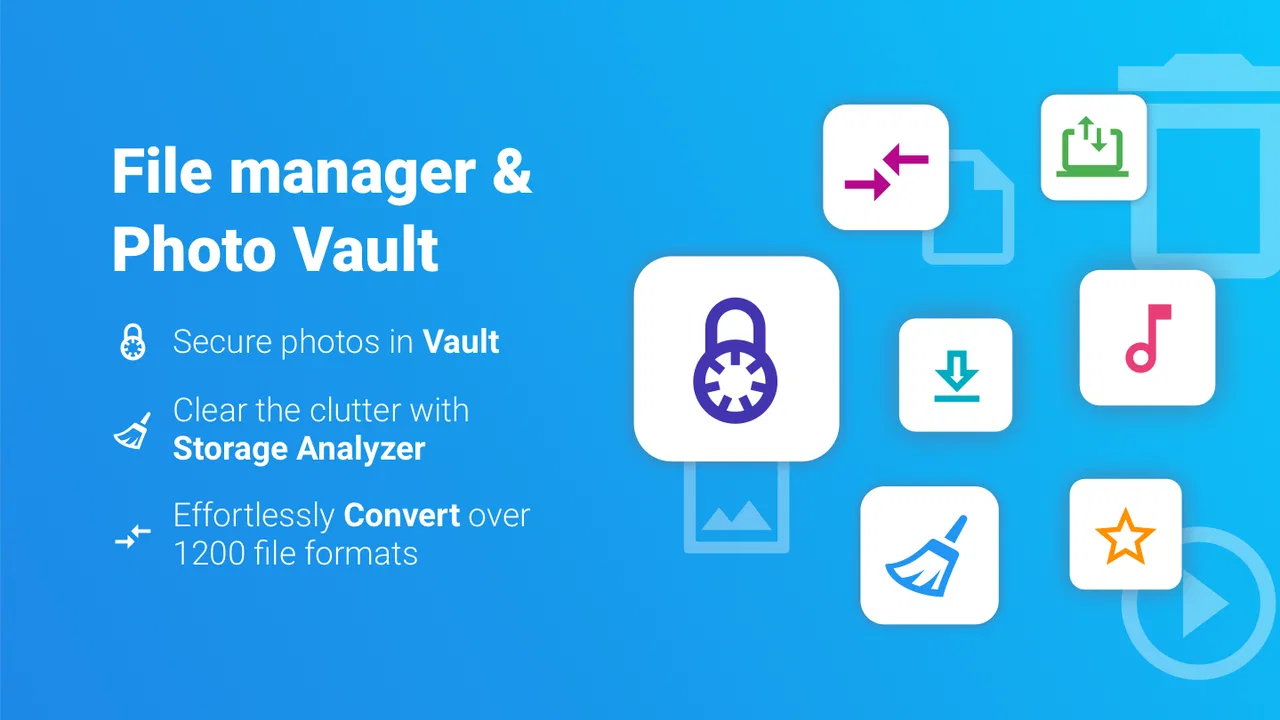
The app belongs to the business category, although I would use that label broadly. It is not limited to office work. A student can organize assignments, a freelancer can separate client material, and a family member can move photos between folders without opening several unrelated apps. Its main role is to bring local files and cloud storage into the same working environment, with a separate vault-style area for more private pictures.
You May Also Like

 AccuWeather: Weather Radar
AccuWeather Review: A Quick, Clear Forecast for Everyday Decisions
For everyday plans, the best forecast is the one you can understand quickly. AccuWeather makes rain timing, radar, and local conditions easy to act on, with a few trade-offs.

 Hill Climb Racing
Why Hill Climb Racing Still Turns Crashes Into One More Run
A tiny car, a bumpy hill and one more upgrade: Hill Climb Racing keeps resurfacing because its simple chaos makes every near-miss feel personal.

 AliExpress - Shopping App
AliExpress Makes Global Shopping Feel Personal, but Shoppers Bear the Risk
AliExpress turns a global marketplace into a pocket-sized discovery engine. Its reach is useful, its shopping loop compelling, and its trade-offs easy to miss.

 Lords Mobile: Kingdom Wars
Lords Mobile Is a Kingdom-Building Routine, Not a Quick Match
A case-by-case verdict on the building, battles, device demands, and social commitments that make Lords Mobile rewarding for some players and exhausting for others.

 PDF Scanner app - TapScanner
TapScanner Makes Paperwork Easier to Capture, Check, and Share
TapScanner makes scanning with a phone feel less like a rescue operation and more like a dependable step in getting work done. Its capture tools are useful, though not flawless.

 Block Blast!
Block Blast! Shows How Much a Puzzle Game Can Leave Out
A quiet grid game shows why puzzle players increasingly value instant clarity, repeatable skill and low-pressure play—and where the genre still needs to catch up.
More From Our News Desk
View All News


That combination changes the way I judge it. A normal file explorer is mostly about navigation: open a folder, select an item, and move or delete it. File Commander adds a layer of personal organization. You are not only asking “where is this file?” but also “should this remain in ordinary storage, should it move to the cloud, or should it be kept in the private area?” That is useful, but it also means I pay closer attention to visibility, confirmation steps, and whether the app makes those choices understandable.
The app has been available since November 6, 2012, and its reach is substantial, with over 100 million installs. Its average rating is 4.2 from around 921 thousand ratings, alongside roughly 11 thousand written reviews. Those figures suggest that it is a familiar choice for a large Android audience, but popularity is not a substitute for checking whether its workflow suits you. I would still test it with non-sensitive files first, especially if I were deciding whether to make it part of a regular document routine.
First impressions and everyday navigation
The useful starting point is the separation between places rather than treating every file as one undifferentiated list. Local storage and cloud locations answer different needs, and keeping them conceptually distinct helps avoid a common mistake: assuming that moving a file inside the app automatically means it has been backed up. I would always pause after a transfer and check the destination, particularly when working with a document that exists in more than one location.
For ordinary tasks, I prefer a file manager that makes selection and movement predictable. File Commander is most comfortable when I approach it with a clear job in mind. For example, I might create a folder for a current project, move downloaded reference files into it, and then place a copy in a cloud location for access elsewhere. The app’s value is not just saving taps; it is giving that process a single home instead of forcing me to switch between a browser, a cloud client, and the phone’s storage viewer.
There is a trade-off here. A broader manager can expose more destinations and actions than a minimalist explorer, which is helpful once I understand the layout but slightly intimidating on the first visit. I would not judge it by a quick glance alone. The better test is whether I can repeat a small workflow without having to remember where each command is hidden.
Cloud files require deliberate handling
Cloud access is one of the strongest reasons to choose this app over a basic local explorer. I can think about files by task rather than by storage provider: locate a report, inspect it, move it into the right folder, and keep the working copy where I actually need it. This is convenient for people who regularly move between a phone and other devices.
However, cloud storage introduces a detail that deserves attention: a file can appear available without being stored locally in the same way as a downloaded item. Before travelling or working without a reliable connection, I would open important files and verify that the version I need is available for offline use through the relevant service. I would also avoid deleting a local copy until I had checked whether the action affects only the phone or the cloud location as well.
My practical tip is to use a simple naming habit before moving anything between locations. Adding a clear project name or date makes duplicate files easier to recognize, especially when the same document exists in local storage and online. This is not a glamorous feature, but it prevents the kind of confusion that no file manager can completely solve.
The vault is useful, but it changes the trust question
The private photo area is the feature that most clearly separates File Commander from a plain explorer. I can see the appeal: personal images do not always belong in the main camera roll, and placing them in a dedicated area can reduce accidental exposure when someone browses the gallery. It is also more convenient than repeatedly searching through ordinary folders.
I would treat the vault as a privacy aid, not as a reason to stop thinking about backups and device access. Before moving irreplaceable images, I would confirm how the app presents them, how I return them to normal storage, and what happens if I change phones or remove the app. Those are the moments when user control matters most. A private folder is only helpful if I can understand the recovery path and make informed choices before placing important material inside it.
There is another everyday scenario worth considering. Imagine handing your phone to a friend to show holiday photos. A vault can reduce the chance that private images appear during casual scrolling, but it does not replace a secure device lock or careful sharing habits. I would still review the screen before handing over the phone, because privacy is a chain of decisions rather than a single switch.
Permissions, accounts, and visible choices
When I evaluate a file manager, I look closely at the points where it asks for access. The app needs a meaningful relationship with files to perform its central job, but I do not want to grant access automatically without reading the prompt. On Android devices, wording and available controls can vary by operating system version, so I would inspect each request on my own phone rather than assuming every user sees exactly the same screen.
File Commander supports Android 7.0 and later, which covers a wide range of devices. That broad compatibility is convenient, but it also means the surrounding permission experience may feel different on an older phone than on a newer one. My advice is simple: allow only what matches the task in front of you, revisit app permissions in system settings when something feels unclear, and avoid treating a familiar developer as a reason to skip the review.
Cloud features deserve a separate check because they can involve account access. I would sign in only to the storage services I actually use, and I would remove an account from the app if I no longer need that connection. If the phone is shared, borrowed, or being prepared for resale, I would sign out and inspect the app’s account controls before handing it over. This is a more reliable habit than assuming uninstalling the app automatically handles every connected service.
I also like to distinguish between a prompt that is necessary for a selected action and a prompt that appears before I have decided what to do. If I am moving a document, a request related to file access makes sense in context. If I am only browsing, I would prefer to understand why additional access is needed before continuing. That pause gives me a chance to cancel, change the plan, or use the phone’s own file tool instead.
Where the free model fits
The app is free to install and use, with in-app purchases ranging from $0.99 to $49.99 per item. For me, that means the first session should be treated as an evaluation rather than an automatic commitment. I would explore the basic file workflow, cloud handling, and vault controls before deciding whether any paid option is worthwhile.
This model can be reasonable for a feature-rich utility, but it makes clarity important. I want to know which action I am selecting before confirming a purchase, and I would pay attention to whether a feature is essential to my routine or merely convenient. Someone who needs only local browsing may find that the free experience is enough, while a heavier user may consider an upgrade if it removes a repeated limitation. The right choice depends on actual use, not on the number of tools visible in the interface.
Because the content rating is Everyone, the app is positioned for a broad audience. That does not mean every setting is self-explanatory for every age group. If I were helping a less technical family member, I would show them how to identify local versus cloud locations, how to leave the vault, and how to cancel an action before confirming it. Those small lessons are more valuable than simply installing the app and assuming the interface will explain itself.
Three workflows where it earns its place
My first recommended workflow is a monthly document cleanup. I would open the manager, review recent downloads, group files by project, remove obvious duplicates, and move finished material to the appropriate cloud folder. The benefit is not just tidiness. It creates a repeatable checkpoint where I can notice files that were downloaded accidentally or left in a location that is difficult to find later.
The second is preparing a phone for a trip. I would gather tickets, reservations, maps, and identification-related documents into a clearly named local folder, then separately confirm which items are also stored online. This avoids relying on a cloud connection at the exact moment I need a document. I would not place every sensitive document in the vault automatically; the vault is more naturally suited to private photos, while important travel files may need quick, predictable access.
The third is separating personal images from everyday browsing. I would move only the photos I genuinely want kept out of the normal gallery, then test the return process with a non-critical image. That test is a useful, non-obvious precaution: privacy tools are easier to trust after I have confirmed that I can retrieve content without confusion.
Where alternatives may be better
If my only task is opening Downloads, the phone’s built-in file app is probably the better choice. It is usually already present, closely integrated with the operating system, and less likely to introduce another account or interface to learn. I would choose File Commander when I need the combination of local organization, cloud access, and a private photo area—not simply because I want to browse one folder.
A dedicated cloud provider’s app may also be preferable when collaboration, sharing links, or provider-specific synchronization is the main priority. File Commander can act as a central workspace, but a specialized service may offer a more focused experience for people who live entirely inside one cloud ecosystem. Likewise, users with strict privacy requirements should compare the app’s visible prompts and account controls with their own expectations before moving sensitive material into it.
Power users may want deeper automation, advanced archive handling, or highly customizable layouts. I would not choose this app solely on the hope that a general-purpose manager will replace every specialized utility. Its strength is the practical middle ground: more capable than a bare explorer, but oriented toward ordinary phone and cloud organization rather than an elaborate technical workstation.
My cautious verdict after using it
File Commander Manager & Vault is a sensible option for people who want one app to organize phone files, reach cloud folders, and keep selected photos in a more private area. I appreciate that it addresses real friction in mobile storage instead of limiting itself to opening folders. The most useful results come when I use it deliberately: check destinations, distinguish local copies from cloud files, test the vault with non-critical content, and review account access when my circumstances change.
My reservations are equally practical. A multi-purpose interface can feel heavier than the default file tool, cloud actions require careful interpretation, and privacy features should never be treated as a complete security plan. The purchase range also means I would explore the free experience before paying for anything. None of these points rules the app out, but they do make it a poor fit for someone who wants absolute simplicity or who is unwilling to inspect permissions and account connections.
Overall, I would recommend trying it if your phone has become a messy mixture of downloads, work documents, cloud folders, and personal photos. Start with ordinary files, learn the movement and recovery steps, and only then decide whether it deserves a permanent place in your routine. The best reason to use File Commander is control over scattered files, not the promise of effortless privacy. Used with that realistic expectation, it is a capable free business utility from MobiSystems, available to Everyone on compatible Android devices, and a worthwhile alternative to relying exclusively on the basic file manager.
FAQs for File Commander Manager & Vault
01What features does File Commander Manager & Vault offer?
File Commander Manager & Vault provides a comprehensive suite of features, including file management, secure vaults for sensitive data, cloud storage integration, and file compression. It also supports a variety of file formats, making it easy to organize and access documents, images, and multimedia files directly from your device.
02How secure is the vault feature in File Commander Manager & Vault?
The vault feature in File Commander Manager & Vault is designed with robust security measures to protect your sensitive data. It uses encryption to safeguard your files, ensuring that only you can access the contents. Additionally, you can set up passwords or biometric authentication for added security.
03Is File Commander Manager & Vault free to use, or does it require a subscription?
File Commander Manager & Vault is available as a free download, offering basic features at no cost. However, to unlock advanced features like premium cloud storage access and enhanced security options, users may need to subscribe to a premium plan, which is available for a monthly or annual fee.
04Can I manage cloud storage accounts with File Commander Manager & Vault?
Yes, File Commander Manager & Vault allows you to manage multiple cloud storage accounts seamlessly. It supports popular cloud services such as Google Drive, Dropbox, and OneDrive, enabling you to access and manage your cloud files directly from the app, making file transfers and synchronization effortless.
05What file formats does File Commander Manager & Vault support?
File Commander Manager & Vault supports a wide range of file formats, including but not limited to documents (PDF, DOCX), images (JPEG, PNG), audio (MP3, WAV), and video (MP4, AVI). This extensive compatibility ensures that you can open, view, and manage almost any file type on your device.
Pros
- Intuitive interface for easy file management.
- Supports a wide range of file formats.
- Built-in secure vault for file protection.
- Cloud integration with major services.
- Efficient search and file categorization.
Cons
- Contains ads in the free version.
- Some features require premium upgrade.
- Occasional lag with large files.
- Limited customization options.
- Requires permissions that may concern privacy.

File Commander Manager & Vault
Gallery